
If you’ve ever tried to upload a file on “Hotel_WiFi_5G”…
…you already know why this article exists.
When people ask how to get internet for a laptop anywhere, what they usually mean is:
“How do I stop relying on luck?”
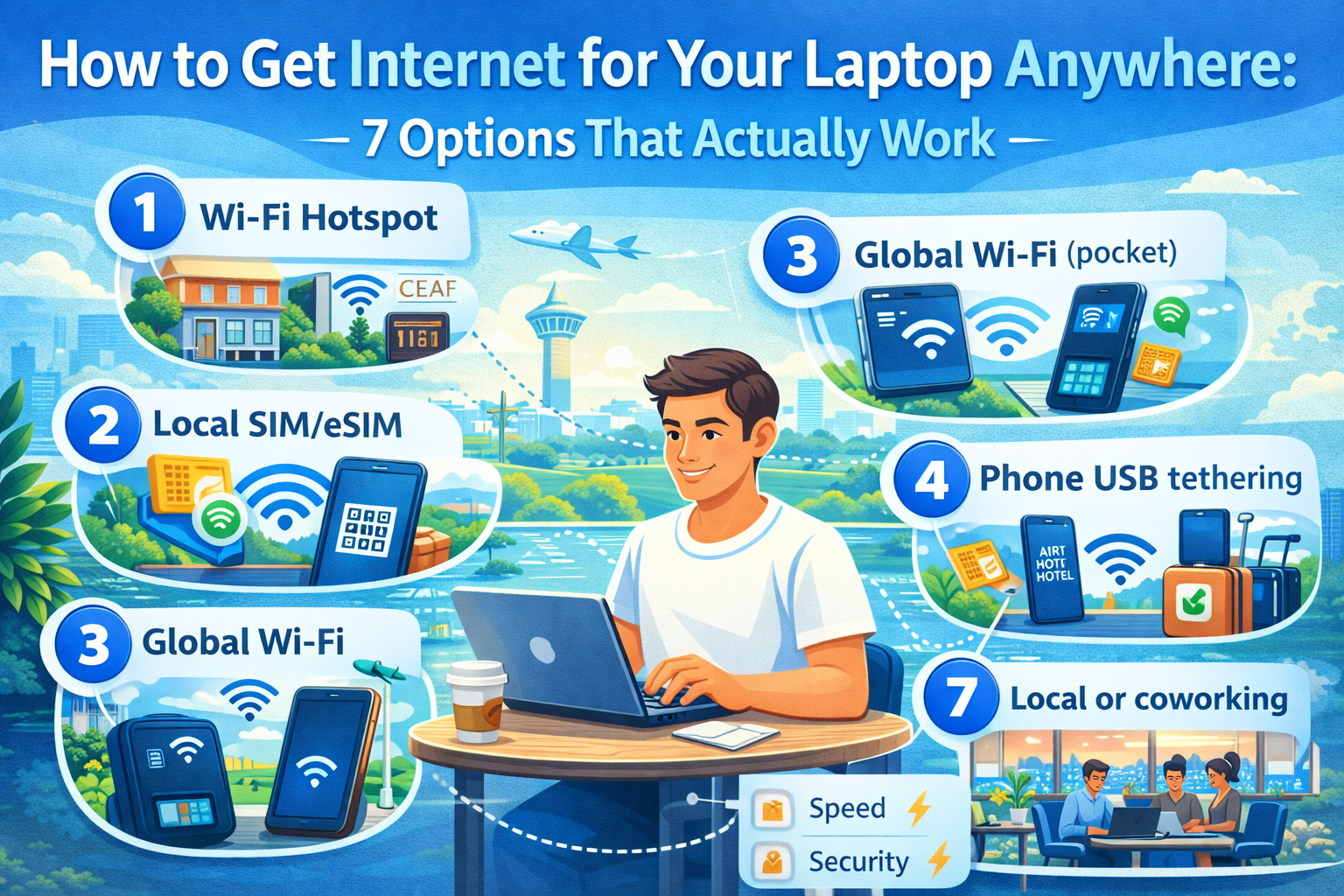
Here are the setups that are reliable in real life — including what I’d use as a primary plan and what I keep as backup.
Option 1: Use your phone as a Wi‑Fi hotspot (fastest, simplest)
This is the default for a reason: it works almost everywhere and requires no extra hardware.
On iPhone / iPad (Wi‑Fi + Cellular):
Apple’s official flow is basically: Settings → Personal Hotspot (or Cellular → Personal Hotspot) → turn on “Allow Others to Join,” then connect from your laptop via Wi‑Fi/Bluetooth/USB.
On Android:
Android calls this “hotspot/tethering,” and it can share data via Wi‑Fi, Bluetooth, or USB. Google also warns that some carriers limit or charge extra for tethering — worth checking before you’re in an airport with 3% battery.
Pro tip (learned the annoying way):
USB tethering is often more stable than Wi‑Fi hotspot and can charge your phone at the same time.
Option 2: Use an eSIM on a Windows laptop that supports it
Some Windows laptops/tablets have cellular modems and support eSIM profiles. When that’s available, it’s genuinely great: the laptop is online the moment it boots — no hotspot juggling.
Microsoft’s documentation explains that eSIM lets your PC connect to cellular data without a physical SIM and that you can add a local data plan when traveling (device and operator support required).
How to check if your Windows device supports it:
- Settings → Network & internet → look for Cellular.
Option 3: Use a dedicated pocket Wi‑Fi (MiFi) device
If you travel with a team, family, or multiple devices (laptop + tablet + partner’s phone), a pocket hotspot can be a good solution.
Downsides:
- It’s one more thing to charge
- One more thing to lose
- Rental devices can be pricey and sometimes throttled
I like this option for:
- conferences
- group trips
- remote work weeks
Option 4: Hotel Wi‑Fi… but treat it as “nice when it works”
Hotel Wi‑Fi is a convenience, not a plan.
If you must rely on it:
- Test speed early (don’t wait until your meeting starts)
- Ask for the business/paid network if there is one
- Keep hotspot as backup
Option 5: Coworking spaces (quiet + stable + plugs)
If you’re doing real work (calls, uploads, long sessions), coworking often beats cafés:
- stable internet
- outlets
- decent chairs
- less noise
Option 6: Public Wi‑Fi (OK as a backup, not as your only internet)
Public Wi‑Fi is fine for:
- browsing
- messages
- low-risk stuff
For anything sensitive (banking, admin panels, client docs), I’d rather tether from my phone or use a VPN and keep sessions short.
Option 7: Turn your Windows laptop into a hotspot (yes, it’s a thing)
Sometimes the laptop has Ethernet (hotel room) and you want to share it with your phone/tablet.
Microsoft explains how to turn a Windows device into a mobile hotspot via Settings → Network & internet → Mobile hotspot, choosing what connection you share and setting name/password.
A practical “no drama” travel setup (what I’d recommend to most people)
- Primary: travel eSIM on your phone (data)
- Laptop internet: tether/hotspot from the phone
- Backup: hotel Wi‑Fi or coworking
- Emergency: pocket Wi‑Fi if you’re traveling with multiple people/devices
If you’re using eSIM2get, install it before departure, then activate data on arrival (and enable Data Roaming for the eSIM when you’re ready).